The Windows taskbar is an essential user interface element that provides quick access to applications, system settings, and notifications. However, encountering a scenario where the taskbar remains visible in fullscreen mode—whether you’re watching a video, playing a game, or presenting—can be both distracting and frustrating. This issue, although common, often stems from background processes, misconfigured settings, or even a minor glitch in Windows.
Fortunately, there are several trustworthy and effective methods available to resolve this problem. Below, we outline a series of solutions to help you restore your fullscreen experience efficiently and reliably.
Why the Taskbar Might Appear in Fullscreen
Before diving into the fixes, it’s important to understand the possible causes. The taskbar might appear in fullscreen due to:
- Background applications prompting notifications
- Incompatible or outdated graphic drivers
- A system glitch after updates or failed system settings
- Misbehaving third-party applications like media players or browsers
Identifying the root cause can help in applying the most effective solution quickly. Let's explore the various methods Windows users can employ to eliminate the persistent taskbar in fullscreen mode.
1. Restart Windows Explorer
One of the quickest and most reliable ways to fix a stuck taskbar is to restart Windows Explorer. It refreshes the user interface and closes any minor glitches affecting the fullscreen behavior.
Steps:
- Press Ctrl + Shift + Esc to open Task Manager.
- Locate and click on Windows Explorer in the list under the Processes tab.
- Click the Restart button at the bottom right-hand corner.
This action will momentarily close your desktop and taskbar and automatically restart them. Check if the issue persists after this refresh.
2. Enable Auto-Hide Taskbar Setting
Another effective solution is enabling the auto-hide feature for the taskbar. This ensures the taskbar disappears when not in active use, such as during fullscreen activities.
How to enable auto-hide:
- Right-click on a blank space on the taskbar and select Taskbar Settings.
- Under the section Taskbar behaviors, check Automatically hide the taskbar in desktop and tablet modes.
- Close the settings window.
This setting minimizes the taskbar and only brings it back when you move the cursor to its usual position. Try switching to fullscreen again and see if it disappears as expected.
3. Use F11 to Force Fullscreen Mode
Most modern web browsers such as Chrome, Firefox, and Edge support a quick fullscreen toggle using the F11 key. If the taskbar doesn’t disappear when playing a video or accessing a web app, pressing F11 may override the issue.
Note: This fix is primarily browser-specific and may not work with other fullscreen applications like games or presentations.
4. Check for Application-Specific Glitches
Some applications behave differently when it comes to fullscreen handling. For instance, using a browser with extensions like ad blockers or video enhancers could interfere with fullscreen playback. Similarly, video players may not properly enter fullscreen mode due to codec issues or hardware acceleration problems.
To resolve this, try the following:
- Update or disable suspicious browser extensions.
- Use an alternate application like VLC Media Player.
- Run the application as Administrator.
If the problem is isolated to a specific application, updating it or reinstalling may offer a permanent solution.
5. Turn Off Visual Effects
Excessive visual effects can sometimes interfere with the proper hiding of user interface elements. Disabling these can help your system maintain the correct display state in fullscreen mode.
To disable animations and other visual effects:
- Open Control Panel and go to System.
- Click on Advanced system settings and select the Settings button under Performance.
- Choose Adjust for best performance or manually deselect specific visual effects like Fade or slide menus into view.
- Click Apply and then OK.
This configuration removes unnecessary transitions that may interfere with fullscreen transitions.
6. Update Graphics Driver
Graphics drivers play a vital role in managing video output and fullscreen capabilities. An outdated or corrupt driver might prevent proper rendering of fullscreen displays, leaving the taskbar visible.
To update your graphics driver:
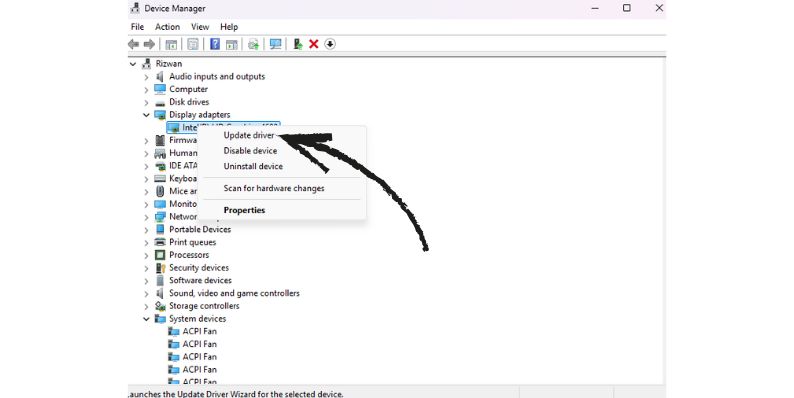
- Right-click Start and choose Device Manager.
- Expand Display adapters and right-click your graphics card.
- Select Update driver and follow the on-screen prompts.
For best results, download the latest driver directly from the GPU manufacturer’s website such as NVIDIA, AMD, or Intel.
7. Disable Notifications and Focus Assist
Background notifications or other system alerts can trigger the taskbar to reappear during fullscreen mode unexpectedly. Turning on Focus Assist can help by suppressing interruptions while you're working or enjoying media.
Steps to enable Focus Assist:
- Open Settings > System > Focus assist.
- Select the option Alarms only or Priority only, depending on your preference.
- Configure automatic rules to activate Focus Assist during presentations, gaming, or during specific hours.
Managing notifications effectively prevents the taskbar from being triggered by constant alerts.
8. Temporarily Disable ‘News and Interests'
The Windows 10 ‘News and Interests' feature has been known to interfere with the taskbar’s auto-hide function, especially in fullscreen mode.
To disable this feature:
- Right-click the taskbar.
- Hover over News and Interests.
- Select Turn off.
Disabling this feature has helped many users restore proper fullscreen behavior, particularly when using dual monitors or watching web videos.
9. Try Another User Profile
Occasionally, corrupt user profiles could lock certain system behaviors like taskbar visibility in fullscreen. Creating a new user account can help diagnose and potentially fix the issue.
Create a new user profile:
- Open Settings > Accounts.
- Click Family & other users.
- Click Add someone else to this PC and follow the prompts.
Switch to the new account and test fullscreen behavior to determine if the issue is tied to the original user profile.
10. Perform System File Check
Corrupted system files may affect UI elements like the taskbar. Use Windows’ built-in System File Checker tool to scan and repair damage.
To run the system file checker:
- Open Command Prompt as Administrator.
- Type
sfc /scannowand press Enter. - Wait for the scan to complete and follow any prompts.
Restart your computer after the process and observe if the problem is resolved.
Conclusion
The Windows taskbar appearing in fullscreen mode can be a stubborn issue, but with the methods outlined above, most users can resolve it without needing technical support. Always start with simpler resets like restarting Windows Explorer or enabling auto-hide settings. If the issue persists, more in-depth methods such as driver updates and profile resets may be needed