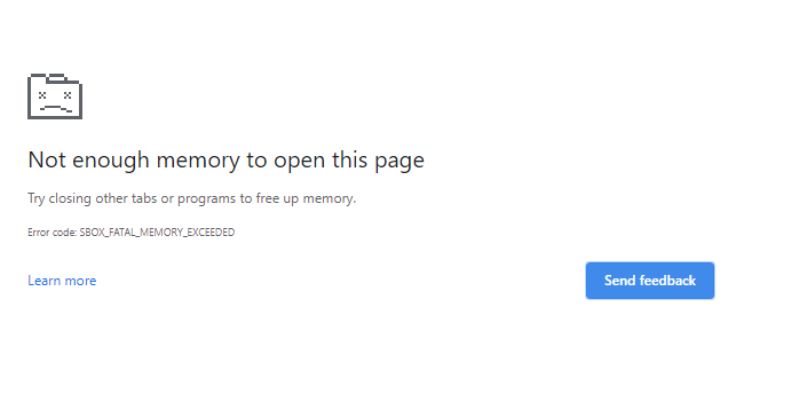
When your browser says not enough memory to open this page, it feels annoying because you just want the site to load. This message often stops you from opening forms, dashboards, banking pages, or heavy sites that use a lot of system resources. In this guide, you’ll learn what the message means, why it shows up on devices like Android phones, Windows PCs, and tablets, and how you can fix it and keep it from returning.
What Is the Not Enough Memory to Open This Page Error?
This error shows when your browser or device cannot load a webpage because it runs out of usable memory. Memory here refers to RAM, browser storage, page-rendering resources, and, sometimes, local device storage. Browsers like Google Chrome, Samsung Internet, Microsoft Edge, and Firefox use memory to load scripts, images, CSS files, ads, and background processes. When the system cannot allocate enough space, the page fails to load.
You may see this message inside Chrome tabs, Android System WebView apps, or even inside apps that open web content like Facebook, LinkedIn, or Gmail. Some users see it when opening PDF previews, cloud dashboards, or map pages that use high resource usage. The message can appear on Android, iOS, Windows, and Chromebook browsers.
 Common Causes of the Error
This error can happen for different reasons depending on your browser, app, or device. Below are the most common causes:
• Too many open tabs using up RAM
• Corrupted browser cache or oversized temporary files
• Low device storage affecting web rendering
• Heavy background apps running in memory
• Faulty or outdated Android System WebView
• Memory leaks from browser extensions
• Sites with high resource demands like maps, dashboards, or ad-heavy pages
How to Fix Not Enough Memory to Open This Page
This part explains the best fixes. Each fix includes why it matters and how to do it.
Fix 1: Close Background Chrome Tabs and Apps
Browsers keep tabs active even when you’re not looking at them. This takes memory. Closing these tabs frees RAM so pages load again. Once memory clears, the browser can render heavy scripts with fewer errors.
Follow the steps below to close background items:
- Open your browser.
- Check the tab switcher and remove tabs you don’t use.
- On Android, open Recent Apps.
- Swipe away apps that use memory like games or camera apps.
- Return to your browser and reload the page.
Fix 2: Clear Browser Cache and Temporary Files
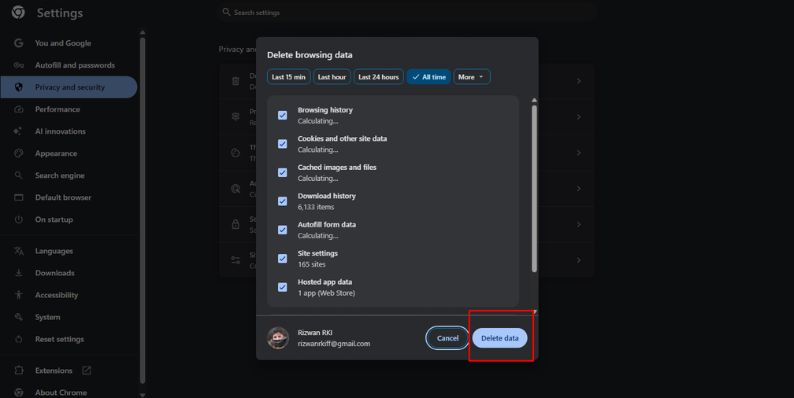 Cache files can grow large and block memory spaces needed for page loading. Clearing them resets how the browser handles website data. After clearing, your browser gets more space to process fresh content.
Here are the following steps which help you clear the cache:
- Open Chrome.
- Tap Settings.
- Select Privacy and Security.
- Tap Clear browsing data.
- Select Cached images and files.
- Clear the data and reload the page.
Fix 3: Restart Your Device to Free RAM
Sometimes your device gets stuck with high background memory usage. A restart resets RAM and closes hidden processes connected to Android System WebView, Chrome sandbox tasks, and system services.
Here’s how you can reset memory in just a few seconds:
- Hold the Power button.
- Tap Restart.
- After the reboot, open your browser again.
- Try loading the same page.
Fix 4: Update Chrome and Android System WebView
Older versions of Chrome or WebView may leak memory. New versions fix bugs, improve tab handling, and increase memory efficiency. When you update both, your system performs better with heavy websites.
The following steps will show you how to update:
- Go to Google Play Store.
- Search for Google Chrome.
- Tap Update if available.
- Search for Android System WebView.
- Update it too.
- Restart the device.
Fix 5: Free Internal Storage
Low internal storage affects how Android handles temporary browser files. Web pages fail to load when storage drops too low. Clearing data gives the system room to create temp files, images, and cookies.
Try these simple steps to quickly free storage:
- Open Settings.
- Tap Storage.
- Remove unused apps.
- Delete large videos or downloads.
- Empty the trash or recycle bin.
- Reload the problem webpage.
Fix 6: Disable Problematic Browser Extensions (PC Only)
Extensions can use memory in the background. Some of them load scripts on every page, which leads to memory spikes. Turning off heavy extensions helps the browser focus on the page you want.
Perform the following steps carefully:
- Open Chrome.
- Go to Menu, then Extensions.
- Turn off ad blockers, script tools, or developer plugins.
- Restart Chrome.
- Load the page again.
Fix 7: Switch to Lite Mode or Request Desktop/Mobile View
Some pages break because they try to load too much content for your device’s memory. Using a lighter view reduces resource usage and helps the page open.
If steps aren’t needed, simply switch views inside your browser menu, then try the site again.
Prevention Tips to Avoid This Error in the Future
Keeping memory clear helps avoid this message. These ideas reduce stress on your system:
• Restart your device once a day
• Keep your browser and Android System WebView updated
• Avoid running many apps at the same time
• Clear cache weekly
• Check device storage and remove unused files
• Use fewer extensions on PC
• Open heavy sites when your network is stable
Conclusion
In short, the not enough memory to open this page error comes from low RAM, limited storage, or heavy background activity. Many users face this on Chrome, Android phones, and WebView apps. Most fixes revolve around clearing memory, updating apps, or closing tabs.
If these steps don’t solve the problem, contact your device support or the browser’s help team because deeper issues like hardware limits or corrupted system components may need advanced checks. Feel free to share your experience or ask questions so others can learn from it.