When iTubeGo doesn’t work, it feels irritating right away. You copy a video link, paste it, and wait. Nothing happens. Or the download starts and suddenly stops. Sometimes the app opens fine, yet it refuses to download anything. This guide is written to help you understand why this happens and what you can realistically do about it without stress.
What Is iTubeGo Not Working?
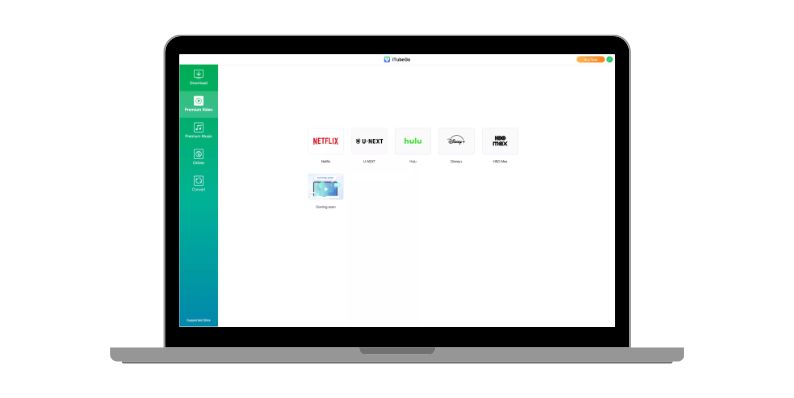 iTubeGo is a video downloading tool people use to save videos or audio from supported websites. When users say iTubeGo is not working, it usually means downloads fail, links are not recognized, the app freezes, or the download stays stuck at zero percent. In many cases, the app itself opens normally, which makes the issue more confusing.
Most users notice the problem inside the app window, right after pasting a video link or during the download process. Others see error messages, stalled progress, or sudden crashes while the app is running.
Common Causes of iTubeGo Not Working
This issue can happen for different reasons depending on the app, system, or website involved.
- The iTubeGo app version is outdated
- The video website changed how it streams content
- The pasted video link is unsupported
- Internet connection is unstable or limited
- Antivirus or firewall blocks the app
- App cache or temporary files are corrupted
- System permissions block background downloads
How to Fix iTubeGo Not Working?
In most cases, the problem comes from software changes or system restrictions. Go through the fixes below one by one. Skipping steps can hide the real issue.
Fix #1: Update iTubeGo to the Latest Version
Many video platforms change often. Older app versions may fail to understand new video formats or page structures. Updating the app usually restores compatibility.
Follow the steps below to easily update iTubeGo:
- Open iTubeGo
- Check for updates inside the app menu
- Download the latest version if available
- Close the app completely
- Install the update
- Restart your system
After updating, downloads often start working again without extra changes.
Fix #2: Check If the Video Website Is Still Supported
Some websites change their streaming method. When that happens, download tools may stop working for that site only. This does not mean the app is broken.
Try downloading from a different supported website. If other links work, the issue is likely related to that specific platform and not your system.
Fix #3: Restart the App and Clear Temporary Files
Temporary files help the app run faster, but when they break, downloads may fail silently. Restarting clears active processes, while clearing cache removes corrupted data.
You can perform the following steps to clear temporary files:
- Close iTubeGo
- Open system app settings
- Locate iTubeGo storage or cache
- Clear temporary files only
- Reopen the app
- Try the download again
This often fixes freezing or stuck downloads.
Fix #4: Check Internet Connection and Network Stability
Downloads rely on steady internet access. Even small drops can stop video fetching without warning.
Check these points:
- Stable Wi-Fi or wired connection
- No active bandwidth limits
- No frequent network drops
- Router working normally
If the network is unstable, downloads may fail even if the app works fine.
Fix #5: Disable Antivirus or Firewall Temporarily
Security tools sometimes block download traffic. This can happen without alerts, especially during background activity.
Follow these easy instructions to test safely:
- Pause antivirus protection briefly
- Disable firewall temporarily
- Try downloading one video
- Re-enable security tools after testing
If the download works, add iTubeGo to the allowed list instead of keeping protection off.
Fix #6: Run iTubeGo With Proper Permissions
If the app cannot save files or run background tasks, downloads may fail halfway or not start at all. This often happens after system updates.
Run the app with proper permissions and confirm it can access storage. Once allowed, downloads usually complete without stopping.
Fix #7: Reinstall iTubeGo Cleanly
Reinstalling helps when internal files are damaged. It resets the app to a clean state.
These are the exact steps you need to follow:
- Uninstall iTubeGo
- Restart the system
- Download the latest version from the official site
- Install it fresh
- Open the app
- Test with a supported video
This removes broken files that updates cannot fix.
Prevention Tips to Avoid iTubeGo Issues in the Future
Small habits reduce future problems and save time.
- Keep iTubeGo updated
- Use stable internet connections
- Avoid blocking the app in security tools
- Clear app cache occasionally
- Use supported websites only
- Allow storage permissions
- Restart the app after system updates
Conclusion
To summarize, iTubeGo usually stops working because of app updates, website changes, network limits, or system restrictions. These issues feel sudden, but most of them are fixable with simple steps.
Try the fixes above patiently and in order. If the problem continues, waiting for an official update may be the only option. If this article helped you, share it with others and leave a comment about which fix worked for you.