
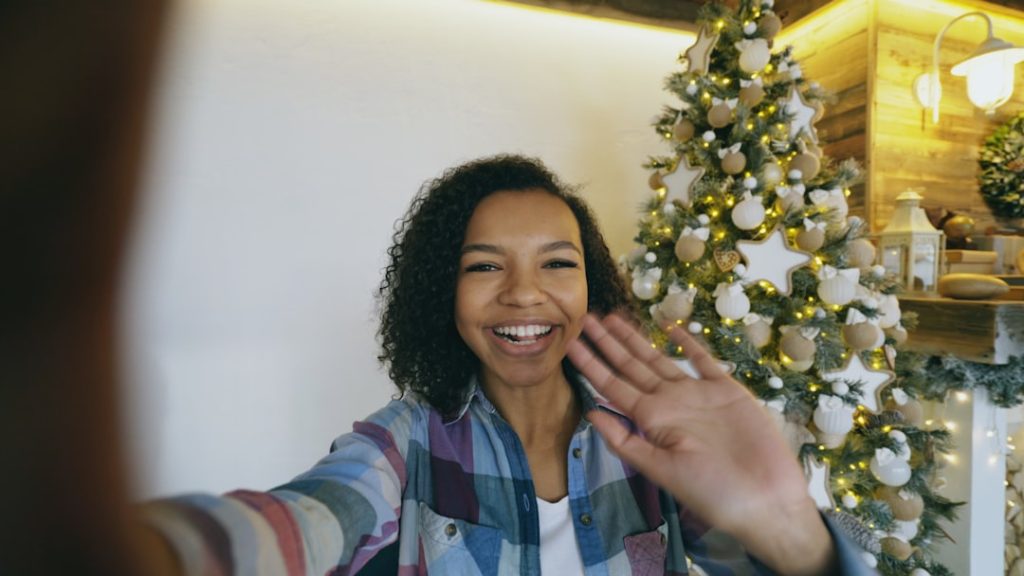
In the age of virtual meetings, online content creation, and remote work, having a crystal-clear webcam feed can make all the difference in how one is perceived. Two of the most critical yet often overlooked aspects of webcam optimization are exposure and focus. These settings determine how bright you appear and how sharp your video looks, making them essential for professional or even casual use of a webcam.
Understanding Exposure in Webcam Settings
Exposure determines how much light your webcam sensor allows when capturing an image. It's a crucial setting because it directly impacts how bright or dark your video appears. Incorrect exposure settings can make your face look washed out with too much light, or barely visible in poor lighting conditions.
Automatic vs. Manual Exposure
Most webcams come with an auto exposure feature that attempts to adjust the brightness level based on the available light. While convenient, auto exposure often makes inappropriate adjustments during a call if the lighting in the room changes or if you move around.
Manual exposure, on the other hand, gives users full control over how bright the video appears. It allows for consistent visual quality, especially useful in steady lighting conditions where frequent changes aren't expected.
- Auto Exposure: Good for rapidly changing environments, but can result in fluctuating light levels.
- Manual Exposure: Ideal for controlled environments, offering consistent quality and personalization.
How to Adjust Exposure Settings
Adjusting exposure settings can usually be done via webcam software or through the settings menu in the video conferencing application being used. Third-party apps like OBS (Open Broadcaster Software), ManyCam, or Logitech's G Hub provide advanced options for tweaking exposure.
When adjusting manually, begin with a balanced light setup. Use natural light from a window or invest in a soft LED ring light. Then, decrease the exposure incrementally until the image looks natural and not overly bright.

The Importance of Focus in Webcam Clarity
Another vital setting in achieving a professional webcam appearance is focus. This setting determines how sharp or blurry your image appears. Being in sharp focus ensures that facial expressions, gestures, and eye contact are clearly visible to your audience.
Types of Webcam Focus
Webcams typically offer two types of focus: auto focus and manual focus. Each comes with its advantages and limitations, depending on how and where you're using the webcam.
- Auto Focus: Automatically adjusts to keep you focused as you move forward or backward. Great for dynamic video calls or presentations.
- manual Focus: Lets you set the focus point and lock it in. Prevents focus from shifting unnecessarily if you stay relatively stationary.
Auto focus can sometimes “hunt” for focus, resulting in a temporary blurring effect. This is especially common in low-light situations or when background objects are more prominent than the subject. Manual focus circumvents this by maintaining a fixed depth of field.
Optimizing Focus Settings
To set up proper focus:
- Make sure your webcam lens is clean – even a small smudge can affect focus.
- If available, disable auto focus through your webcam’s software or a third-party app.
- Physically adjust the lens (on webcams with manual rings) or digitally tweak the focus slider.
Always test your focus adjustments with a test recording or call before going live.


Combining Exposure and Focus for Best Results
While each setting has its own impact, exposure and focus work best when optimized together. Having perfect focus in a poorly lit environment won't provide good image quality, and the reverse is equally true. Here are a few tips for using both settings effectively:
- Use a consistent light source: This helps in maintaining both accurate exposure and stable autofocus behavior.
- Position the webcam at eye level: It avoids harsh shadows and makes you appear more engaged.
- Perform periodic checks: Recalibrate exposure and focus especially when changing lighting conditions or if your face looks off-screen or blurry.
Additional Tools for Fine-Tuning Webcam Settings
Some specific software tools can help users gain better control over exposure and focus:
- OBS Studio: Open-source software supporting webcam customization including exposure, focus, zoom, and more.
- Logi Tune: Designed for Logitech webcams, offering an intuitive interface to modify camera settings.
- Snap Camera: Adds filters while also enabling manual tweaks for focus and lighting.
Using these tools not only offers more granularity but also allows user profiles for different scenarios like streaming, meetings, and recording.
Best Practices for Webcam Appearance
Mastering exposure and focus is fundamental, but a few best practices will enhance webcam performance even more:
- Use good lighting: Natural window light or a diffused ring light helps maintain favorable exposure.
- Minimize background distractions: This ensures the camera keeps focus on you rather than surrounding elements.
- Keep the webcam clean: Dust or fingerprints can interfere with both focus and exposure.


Conclusion
In a digital world where first impressions often begin and end with a webcam, the importance of optimizing exposure and focus cannot be overstated. Whether participating in video conferences or recording content for a global audience, fine-tuning these two crucial settings ensures that users look their best on camera. From using natural lighting and third-party software to choosing between automatic and manual controls, the ability to sharpen your image starts with understanding how your webcam works.
FAQ
- What is the ideal exposure level for webcam use?
- Ideally, the image should be bright enough to see facial details but not too bright that it washes out the subject. A well-lit room combined with manual exposure settings usually provides the best result.
- Why does my webcam keep going out of focus?
- This usually happens when auto focus is on and the camera struggles to find a steady subject. Switching to manual focus often resolves this issue.
- Can I fix exposure if my room has poor lighting?
- Yes. While webcams can adjust for low light, it's better to supplement it with consistent soft lighting sources such as ring lights or desk lamps.
- Do all webcams allow manual exposure and focus?
- No, not all models offer full manual control. Higher-end or professional-grade webcams tend to provide more advanced settings. Use third-party tools to check if they're supported on your model.
- What’s the easiest way to improve both exposure and focus simultaneously?
- Improve room lighting, clean your webcam lens, and use webcam software that provides manual control. Combine these efforts with positioning the camera at eye-level and eliminating background clutter.