
You press the power button, the fans start spinning, maybe the keyboard lights up – but the screen stays black. No logo, no cursor, nothing. It’s one of the most common Lenovo laptop problems, and it can look serious.
The good news is that in most cases, your laptop isn’t dead. The black screen can occur due to a power glitch, software crash, or display issue. You can usually fix it yourself with a few simple steps. Let’s go through all possible causes and fixes in plain language so you can bring your screen back to life.
Common Causes of a Black Screen on Lenovo Laptops
- Power problems: A weak battery, faulty charger, or static electricity inside the system can prevent startup.
- Display or brightness issues: A damaged screen cable, loose connection, or brightness turned all the way down can make it look like the screen is off.
- Software or driver errors: Corrupted graphics drivers or incomplete Windows updates can freeze the screen during boot.
- Hardware faults: A bad RAM stick, GPU issue, or failing motherboard can also lead to a black display.
In most cases, though, it’s a temporary power or software glitch that you can fix quickly at home.
Basic Checks Before You Start
Before trying deeper fixes, check these quick things first:
- Make sure the power indicator or keyboard backlight turns on.
- Confirm the charger is plugged in and working (try another outlet if possible).
- Press F5 or Fn + F5 to increase the brightness level.
- Unplug all USB devices, memory cards, and external monitors – they can sometimes block the boot process.
If the laptop still shows a black screen, move on to the next fix.
Fix 1: Perform a Power Reset
A power reset clears static electricity that can block power flow inside the laptop. It’s one of the easiest and most effective fixes.
Here’s how to do it:
- Turn off your Lenovo laptop completely.
- Unplug the charger and remove any connected accessories.
- If your model has a removable battery, take it out carefully.
- Press and hold the power button for 15 to 20 seconds.
- Reconnect only the charger (don’t put the battery back yet).
- Press the power button and check if the screen lights up.
If the screen turns on, shut it down again, reinstall the battery, and power it back up. This fix works for many Lenovo models, including ThinkPad and IdeaPad.
Fix 2: Connect to an External Display
If your laptop turns on but the display stays dark, the screen itself might be the issue. You can test this by connecting it to an external monitor or TV.
Follow these steps:
- Use an HDMI or VGA cable to connect your Lenovo laptop to an external display.
- Turn on both the laptop and the external display.
- Press Fn + F7 or Windows + P to open the display options.
- Select Duplicate or Extend to share the screen externally.
If the external monitor shows your desktop, the laptop’s internal display, cable, or backlight is likely faulty. If both screens stay black, the problem is deeper in the system or GPU.
Fix 3: Boot Into BIOS or Safe Mode
If your laptop powers on but you don’t see Windows, the system may be stuck during startup. Try entering the BIOS or Safe Mode to test the screen.
To access BIOS:
- Turn off your laptop.
- Press F2 or Fn + F2 repeatedly as you turn it on.
- If the BIOS screen appears, the display is working fine and the problem lies in Windows or your drivers.
To boot into Safe Mode:
- Turn the laptop on and off three times in a row to trigger Windows Recovery Mode.
- Go to Advanced Options → Troubleshoot → Startup Settings → Enable Safe Mode.
- Once in Safe Mode, uninstall any recent updates or drivers that may have caused the issue.
Restart normally after this and check if the screen loads.
Fix 4: Update or Reinstall Graphics Drivers
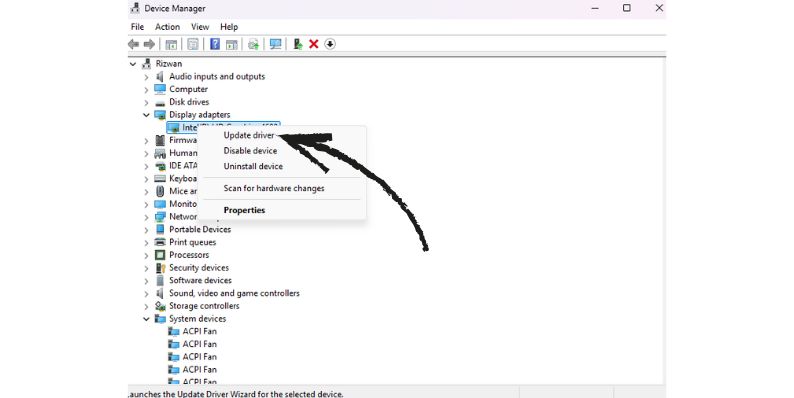
Here’s how to reinstall the driver:
- Boot your laptop into Safe Mode (as explained above).
- Press Windows + X and select Device Manager.
- Expand Display Adapters.
- Right-click your graphics driver (Intel, NVIDIA, or AMD) and select Uninstall Device.
- Restart your laptop – Windows will reinstall the driver automatically.
If the problem continues, go to Lenovo Vantage or the Lenovo Support website and manually install the latest driver for your model.
Fix 5: Reset BIOS or CMOS Battery
Sometimes the BIOS settings get stuck or corrupted, especially after power loss or updates. Resetting it can fix startup problems.
To reset BIOS:
- Turn off your laptop and unplug the charger.
- Remove the battery if possible.
- Hold the power button for 30 seconds.
- If you’re comfortable, open the back panel and remove the CMOS battery (a small silver coin-like battery).
- Wait for 5 minutes, then put it back.
- Reassemble your laptop and power it on.
This resets all BIOS settings to default, often restoring the display function.
Fix 6: Use Windows Startup Repair
If your screen stays black after the Windows logo or login, the operating system might be damaged.
You can use Windows built-in repair tool:
- Turn your laptop on and off three times to trigger the recovery environment.
- Click Troubleshoot → Advanced Options → Startup Repair.
- Follow the on-screen instructions and wait while Windows scans and repairs boot files.
After repair, restart the system normally and check the display.
Fix 7: Seek Professional Help
If none of the above fixes work, the issue is likely hardware related. A damaged motherboard, GPU, or display cable might be the cause.
Contact Lenovo Support or visit an authorized Lenovo service center. They can test the internal components, replace faulty parts, and check your warranty coverage. Avoid unauthorized repair shops – they might use non-original parts that cause further issues.
Preventing Future Black Screen Problems
You can reduce the chance of seeing a black screen again by taking a few precautions:
- Keep your system updated using Lenovo Vantage.
- Avoid overheating by cleaning vents and using your laptop on hard surfaces.
- Shut down properly instead of forcing power-offs.
- Use a surge protector to avoid voltage damage.
- Don’t slam or twist the lid, as it can loosen internal display cables.
Regular maintenance keeps your Lenovo laptop stable and responsive.
Final Thoughts
A black screen doesn’t mean your Lenovo laptop is broken. In most cases, a quick power reset, display test, or driver update will get it running again. If the fixes don’t help, contacting Lenovo support for a hardware check is your safest next step.
With a little patience and these simple methods, you can bring your black screen back to life and get back to work without panic.