Sometimes Outlook just stops working. Emails won’t send, your inbox doesn’t refresh, or the app won’t even load. It’s frustrating, especially if you depend on Outlook for work or school. Many users face this issue daily, wondering if Outlook is down or if the problem is local.
Outlook, part of Microsoft 365, connects millions of users through web and desktop email services. When it fails, it could be because Microsoft’s servers are temporarily offline or because something on your system is blocking access. Let’s break it down in simple steps so you can figure out what’s wrong and what to do about it.
Why Outlook May Be Down
Sometimes Outlook is down for everyone. Sometimes it’s just you. Knowing the reason helps you fix it faster.
Here are the most common causes:
- Server outage or maintenance on Microsoft’s side.
- Email sync problems between Outlook and Exchange Online.
- Network or DNS errors that block Outlook from reaching Microsoft servers.
- Outdated app version or corrupted local cache.
- Authentication failures after changing your password.
- Browser or add-in conflicts if you’re using Outlook Web.
Microsoft usually restores services quickly, but you can always check the source before assuming it’s a big outage.
How to Check If Outlook Is Down
If Outlook stops responding, don’t guess. There are several reliable ways to see if the service is down globally or just on your computer.
1. Check Microsoft 365 Service Status
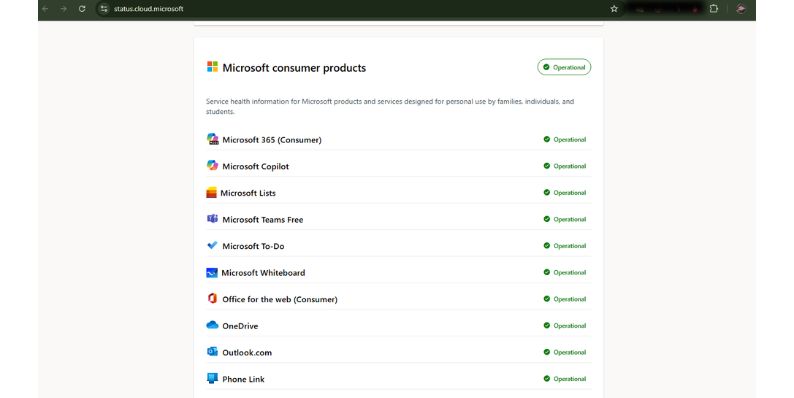 The best way to confirm an Outlook outage is by visiting Microsoft’s official status page. It lists live updates for all Microsoft 365 apps.
Steps:
- Go to https://status.office.com.
- Look for Outlook.com or Exchange Online in the list.
- A green icon means it’s working fine. Yellow or red means there’s an ongoing issue.
- Click the service name to view details, such as affected countries or features.
This is the most accurate way to see if Outlook is down for everyone.
2. Use DownDetector or IsItDownRightNow
If Microsoft’s page loads slowly or hasn’t updated yet, try a third-party tracker. Sites like DownDetector and IsItDownRightNow collect real-time outage reports from users worldwide.
Check here:
If there’s a significant spike in reports or a map showing multiple red zones, Outlook is likely facing a widespread issue.
These sites also include a comment section where users share what regions are affected.
3. Visit Microsoft’s Official Twitter (X) Account
Microsoft’s support team posts real-time outage alerts on @MSFT365Status. You can also search “Outlook down” on X (formerly Twitter) to see user reports.
This helps confirm whether the issue is new or already being worked on.
If you see multiple reports within the last few minutes, it’s safe to say the problem is not on your end.
4. Test Your Internet Connection
If there are no outage reports, check your connection. Sometimes it’s just a local network issue.
Try this:
- Restart your Wi-Fi router.
- Open another website to see if it loads.
- Use mobile data to test if Outlook works there.
- If Outlook only fails on Wi-Fi, reset your DNS.
To reset DNS:
- Press Windows + R.
- Type
cmdand press Enter. - Type this command:
ipconfig /flushdns
- Press Enter again, then restart your PC.
If Outlook loads afterward, the issue was likely a DNS cache problem.
5. Restart or Repair the Outlook App
If you use the Outlook desktop app, syncing errors can prevent it from connecting.
Steps:
- Close the Outlook app.
- Reopen it and check if your mail loads.
- If not, go to File > Account Settings > Repair.
- Follow the repair wizard and restart your PC.
This resets your account settings and re-syncs emails with Microsoft servers.
For the mobile app, log out and back in, or reinstall it from your app store.
6. Clear Browser Cache if Using Outlook Web
Outlook Web (Outlook.com) may show a blank screen or load slowly because of cached browser data.
To fix this:
- Open your browser settings.
- Go to Privacy and Security > Clear browsing data.
- Select Cookies and Cached images and files.
- Close and reopen your browser.
After clearing, visit Outlook.com again. If it opens normally, the cache was causing the problem.
7. Check Antivirus or Firewall Settings
Sometimes antivirus software or firewall rules block email ports and domains. Temporarily turn off your firewall or antivirus to test if that’s the issue.
If Outlook starts working again, add outlook.com and office.com to the exception list before turning your protection back on.
8. Contact Microsoft Support
If none of the above methods fix the issue and Outlook still won’t load or sync, it’s time to contact Microsoft Support. Sometimes the problem is related to your account or region, and only Microsoft’s team can confirm it.
Go to support.microsoft.com or open the Microsoft 365 Help page from your account dashboard. There, you can submit a support request directly.
When contacting support, include important details such as your device type, Windows version, browser or app version, and the error message you’re seeing. These details help the technician identify whether the issue is account-specific, system-related, or part of a wider outage.
In some cases, Microsoft can refresh your mailbox session or provide temporary access while they fix the underlying problem.
How to Prevent Future Outlook Problems
You can’t stop outages, but you can avoid local issues by keeping your system clean and updated.
Tips that help:
- Keep Outlook and Windows updated.
- Bookmark status.office.com for quick checks.
- Avoid running too many browser extensions.
- Clear your cache once a month.
- Use stable Wi-Fi and secure DNS settings.
- Enable Two-Step Verification to protect your account.
These small steps make sure Outlook runs smoothly and reconnects faster after temporary disruptions.
Conclusion
When Outlook stops loading, it doesn’t always mean it’s your fault. Most of the time, it’s a Microsoft server outage or a temporary connection issue. Checking Microsoft’s Service Status page, DownDetector, or @MSFT365Status on X gives you quick answers.
If there’s no global outage, restarting your app, clearing cache, or fixing your DNS often solves it.
I hope this article helps you figure out if Outlook is down or not and gives you simple ways to get your email running again.
If this guide helped, drop a comment below or share it to help someone stuck with the same problem.