
Ever tried to run a virtual machine and had your computer say, “Nope”? That can be super frustrating. But the fix might be easier than you think! If you're here, you're probably trying to set up something like VirtualBox or VMware and need hardware virtualization</b turned on. Don’t worry, we’ll walk you through it step by step—like a tech-savvy buddy guiding you through a maze.
What is Hardware Virtualization?
Imagine your computer as a house. Hardware virtualization is like creating extra rooms where other people (virtual machines) can live peacefully, without messing with your main stuff. It lets your PC run more than one operating system at the same time.
This magical feature is built into most modern CPUs from Intel and AMD. But sometimes, it’s turned off by default. You have to go into a secret world known as the BIOS or UEFI to switch it on.
Quick Check: Is Virtualization Already Enabled?
Wait! Before diving into the BIOS, let’s make sure your system doesn’t already have it enabled. Here’s how:
- Right-click the Taskbar and click Task Manager.
- Go to the Performance tab.
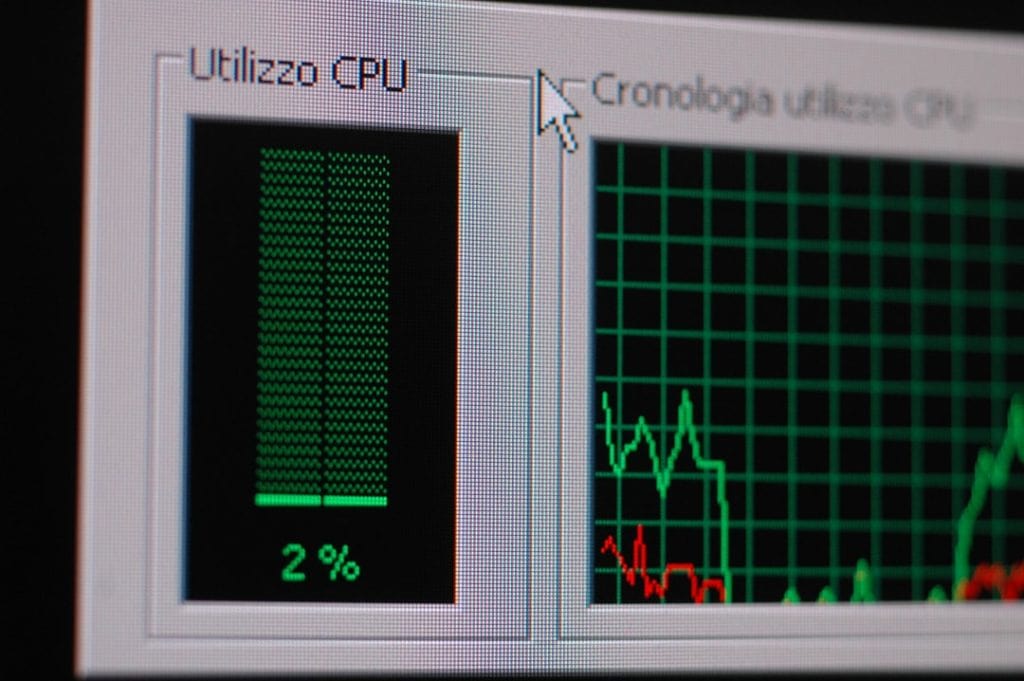
- Click on CPU.
- Look on the right-side panel. See something that says Virtualization: Enabled?
Hooray if it’s already on! If not, let’s get ready for the BIOS journey.

Step-by-Step: Turning On Virtualization in BIOS or UEFI
This part can feel a little “Matrix-y,” but follow closely and you’ll get it done in no time.
Step 1: Reboot Your Computer
Click on Start, then Restart. Get ready to press a key as your system starts booting.
Step 2: Enter BIOS/UEFI Setup
This can vary depending on your brand of computer. Usually, one of these keys opens BIOS:
- F2
- Del or Delete
- F10
- Esc
You have to press the key fast—right after turning on the PC. You might see a message like “Press F2 to enter Setup.” That’s your cue!

Step 3: Find the Virtualization Setting
This is where it gets a bit like a treasure hunt. Look for a setting that says something like:
- Intel Virtualization Technology
- VT-x
- AMD-V
- SVM Mode (for AMD systems)
These are usually under tabs like:
- Advanced
- CPU Configuration
- Security
- Advanced BIOS Features
If you're using a laptop, you might need to enable a special setting like Advanced Mode first to see all options.
Step 4: Turn It On
Once you find the virtualization option, set it to Enabled.
Step 5: Save and Exit
Look for options like:
- Save and Exit
- Press F10 (on some systems)
The system will reboot again. And boom—you’ve unlocked virtual magic!
Enable Virtualization in Windows Features (Optional but Helpful)
This part is optional, but good if you want to use Hyper-V, Microsoft’s own virtualization platform.
Try this:
- Open the Control Panel.
- Click Programs > Turn Windows features on or off.
- Check Hyper-V.
- Click OK and restart if prompted.
Note: This only works if you're using Windows 10 or 11 Pro or Enterprise. Home editions don't support Hyper-V, but you can still run tools like VirtualBox.
What If I Don’t See the Option in BIOS?
Okay, deep breath. If you can’t find the virtualization option, here are a few tips:
- Make sure your CPU supports virtualization. You can look up the specs online.
- Your BIOS might be outdated. Visit your PC or motherboard manufacturer's website to check for a BIOS update.
- Not all budget laptops unlock full BIOS settings, sadly.
If all else fails, ask a tech-savvy friend or your nearest nerd hero.
Why Should You Even Bother?
Turning on virtualization gives you access to a bunch of cool stuff. Like:
- Running Linux inside Windows (so cool, right?)
- Trying out new operating systems without messing up your main one
- Running old games or apps that only work on older systems
- Using tools like Android emulators, Docker, or software development sandboxes
FAQs (Frequently Asked Questions)
Q: Will enabling virtualization slow down my computer?
Nope. It doesn’t affect your regular PC performance unless you’re running a virtual machine in the background.
Q: Is this change permanent?
It sticks until you turn it off again in BIOS. It won’t change with system updates or reboots.
Q: Can I still play games and do regular stuff?
Absolutely. Your PC works just like before—only now it’s more powerful and versatile!
You Did It!
Let’s give you a digital high-five! 🙌 By turning on hardware virtualization, you've unlocked a whole new world of computing power.
Now you can run virtual machines, experiment with new operating systems, and power up development tools. You’re no longer just a user—you’re a creator, a tinker-er, a virtual architect!
Go ahead and launch that VM you’ve been waiting for. The future is virtual, and you’re ready for it.
Happy virtualizing!