YouTube Error Code 4 is a playback problem many users see when trying to watch videos. It usually comes with the message “This video is unavailable — Error Code: 4.” For viewers, this means the video cannot load and playback is blocked.
The error is frustrating because it interrupts normal viewing and can appear on browsers, the YouTube app, or even on YouTube TV. Luckily, most of the time it is not permanent and can be resolved by understanding what it means and why it happens.
What Does YouTube Error Code 4 Mean?
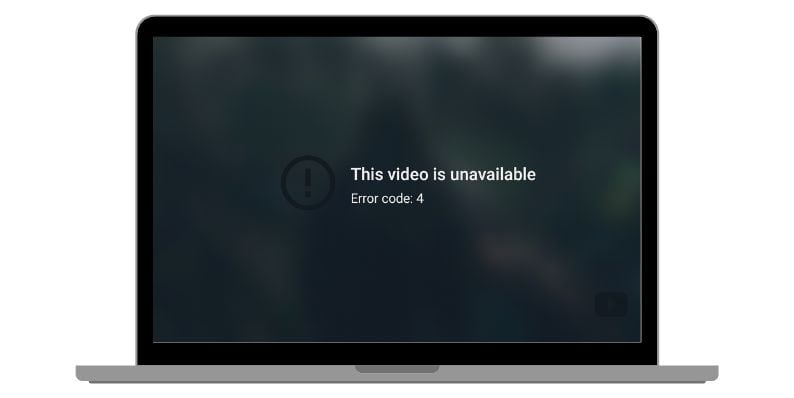 Error Code 4 generally indicates a playback failure caused by a conflict between YouTube’s video delivery system and something on the user’s device. It may be an extension that blocks streaming, a temporary glitch, or a problem with cache data.
In some cases, it happens because the YouTube app or browser is outdated, or because internet connectivity drops. The message is YouTube’s way of saying the player could not fetch or display the requested video.
Common Causes of Error Code 4 on YouTube
Before jumping to solutions, it helps to understand the triggers. Error Code 4 can be caused by:
- Browser ad blockers or extensions are interfering with video playback
- Cache or cookies are storing outdated data and blocking new requests
- Internet connection issues from Wi-Fi or router problems
- A glitch in the YouTube app or browser session
- Outdated software (app or browser not updated to the latest version)
- Playback restrictions, sometimes linked to region or account status
- Temporary YouTube platform issues or server-side disruptions
Each of these disrupts the normal communication between your device and YouTube’s servers, which results in the “unavailable” error.
How to Fix YouTube Error Code 4?
When YouTube shows Error Code 4, it usually means the video player is being blocked or interrupted. The good news is most fixes are simple. Try the following methods one by one until playback starts working again.
Fix #1. Disable Ad Blockers and Browser Extensions
Ad blockers and some privacy extensions can block YouTube scripts, causing Error 4. Turning them off often clears the error.
Steps to disable extensions (Chrome example):
- Open Chrome and click the three-dot menu.
- Go to More Tools > Extensions.
- Find your ad blocker or privacy extension.
- Toggle it off or click Remove.
- Restart Chrome and reload the YouTube video.
Fix #2. Restart Your Device
Temporary glitches in your computer, phone, or streaming device can cause YouTube videos to fail. Restarting clears memory and resets background processes. Simply shut down the device, wait 30 seconds, then power it back on and try YouTube again.
Fix #3. Clear Browser Cache and Cookies
Old or corrupted cache files can block YouTube videos from loading correctly. Clearing them forces the browser to fetch fresh data.
Steps to clear cache in Chrome:
- Click the three-dot menu in Chrome.
- Go to Settings > Privacy and Security.
- Select Clear Browsing Data.
- Choose Cookies and Cached Images/Files.
- Select All Time as the range.
- Click Clear Data, then restart Chrome.
Fix #4. Reboot Your Router and Modem
Network problems may prevent YouTube from loading properly. Restarting your router refreshes your connection.
Steps to reboot network equipment:
- Close the YouTube app or browser.
- Turn off your PC or mobile device.
- Unplug the router and modem from the wall.
- Wait at least one minute.
- Plug the modem back in first, then the router.
- Turn your device back on and test YouTube.
Fix #5. Update Your Browser or YouTube App
Outdated software sometimes conflicts with YouTube’s latest playback features. Make sure your browser or app is up to date.
Steps to update Chrome:
- Open Chrome.
- Click the three-dot menu.
- Go to Help > About Google Chrome.
- Wait while Chrome checks for updates.
- If an update is found, install it.
- Restart Chrome and test YouTube again.
For mobile, update the YouTube app via the App Store or Google Play Store.
Fix #6. Try Incognito Mode or a Different Browser
Incognito mode disables extensions and uses fresh cache data. If the video works there, the problem is likely tied to your extensions or stored data. You can also switch to another browser (e.g., Firefox, Edge, Safari) to check if the error is browser-specific.
Fix #7. Sign Out and Back Into Your YouTube Account
Sometimes login sessions get corrupted. Signing out and back in refreshes your YouTube account connection. Open YouTube, click your profile picture, choose Sign Out, then log back in with your Google account.
Fix #8. Test YouTube on Another Device
If the error only appears on one device, the issue is local to that device. Try playing the same video on a phone, tablet, or smart TV. If it works elsewhere, focus on fixing the original device by resetting settings or reinstalling the app/browser.
Fix #9. Reinstall the YouTube App (Mobile/TV Users)
For those on mobile devices or smart TVs, reinstalling the app can fix corrupted files. Uninstall YouTube, restart your device, then reinstall it from the official app store. This gives you a clean version with no leftover data.
When to Contact YouTube Support?
If Error Code 4 continues after trying all common fixes, the issue may be server-side or account-related. At that point, contacting YouTube Support is the best option.
Provide details such as the error code, a screenshot, your browser or app version, and the device you are using. This helps support teams trace whether the issue is tied to your account, device settings, or a platform-wide restriction.
For users of YouTube TV, reaching out through the YouTube TV Help Centre can also confirm if the error is related to content availability or a streaming rights limitation.
Tips to Prevent Error Code 4 in the Future
While no one can control YouTube’s servers, many causes of Error Code 4 are avoidable. Here are some prevention tips:
- Keep your browser or YouTube app updated so playback features stay compatible.
- Disable or whitelist YouTube in ad blockers to prevent interference.
- Clear cache and cookies regularly to avoid data conflicts.
- Restart your device if video playback freezes often.
- Use a stable internet connection and reboot your router if streaming slows down.
- Try incognito mode or a different browser when issues appear.
- Avoid using experimental extensions or beta browser builds with YouTube.
Conclusion
YouTube Error Code 4 means the player cannot load the requested video, often due to conflicts with ad blockers, cache issues, or unstable connections. While the error looks alarming, the causes are usually simple and preventable.
With regular updates, safe browsing practices, and a reliable connection, you can avoid most playback issues. And if the problem doesn’t resolve, YouTube Support is there to help.