
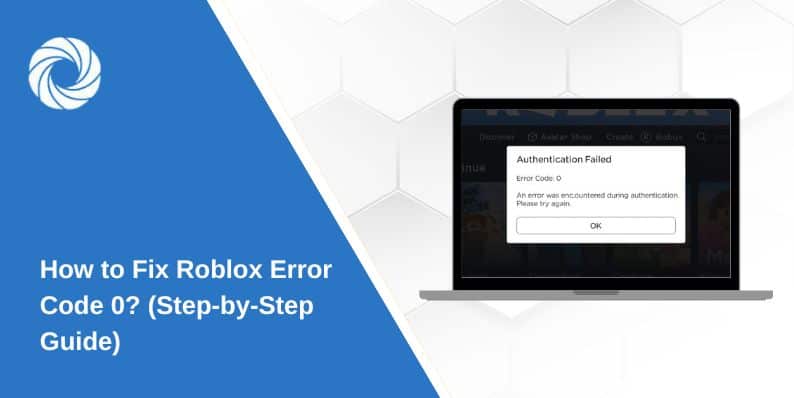
Roblox is fun when it works. But if you get Error Code 0, you can’t even start the game or join a server. The screen freezes or closes, and you’re locked out. This error interrupts your play, your creative work in Roblox Studio, and even streaming. In this guide, you’ll learn what Error Code 0 means, what causes it, how to fix it, and how to stop it from happening again.
What is Roblox Error Code 0?
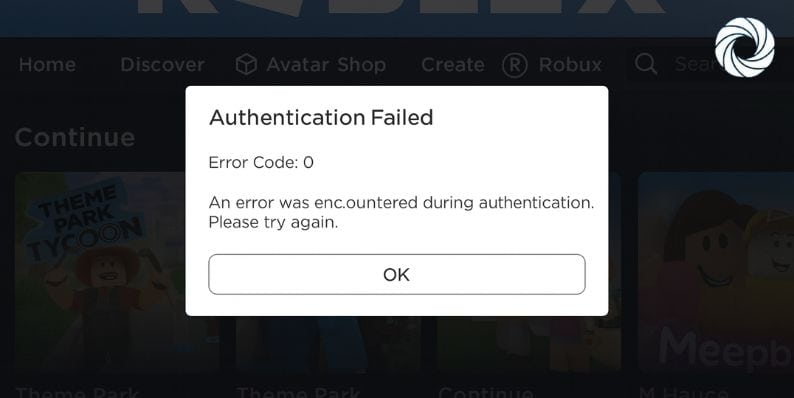
Players usually see this error inside the Roblox app on Windows or macOS. It can appear when you press “Play” from the browser, open the Microsoft Store app, or launch Studio. Sometimes the window closes, and other times the message “Error Code 0” pops up.
Common Causes of Roblox Error Code 0
This error has more than one root cause. Some are network problems, others are system or app conflicts.
- Weak Wi-Fi signal or unstable internet from your ISP
- Firewall or antivirus software blocking Roblox executables
- Corrupted cache or partial update inside Roblox folders
- VPNs, proxies, or school/work networks blocking Roblox traffic
- Slow or incorrect DNS servers not resolving Roblox addresses
- Missing runtime components like Visual C++ Redistributables or WebView2 Runtime
- Browser handoff or outdated Roblox Player/Studio
How to Fix Roblox Error Code 0?
Fixes depend on your network and device settings. Try them one by one until Roblox works again.
Fix #1: Restart Roblox and Your Device
A simple restart clears memory and forces a new server connection. Close Roblox, restart your computer, then try to join a game again.
Fix #2: Clear Roblox Cache and Temp Files
Corrupted cache blocks Roblox from launching.
Here are the steps you can follow:
- Close Roblox and Roblox Studio.
- On Windows, press Win + R, type
%localappdata%\Roblox, and delete the folders “Downloads,” “logs,” and “Cache.” - On Windows again, press Win + R, type
%temp%, and remove Roblox temp files. - On macOS, go to
~/Library/Robloxand~/Library/Logs/Robloxand delete contents. - Empty the trash, restart your computer, and reopen Roblox.
Fix #3: Allow Roblox Through Firewall and Antivirus
Security tools can block Roblox’s WebSocket and HTTPS connections.
Steps for Windows:
- Open Windows Security.
- Go to Firewall & network protection.
- Click “Allow an app through firewall.”
- Make sure RobloxPlayerBeta.exe and RobloxStudioBeta.exe are checked for both Private and Public.
- For third-party antivirus like Norton, Avast, or Kaspersky, add the Roblox install folder to the allow-list.
Fix #4: Turn Off VPN or Proxy
VPNs and proxies often block VoIP and game traffic. Disconnect any VPN or proxy and try joining a Roblox game again. If you’re on a school or office network, test on mobile data or a home Wi-Fi.
Fix #5: Reset DNS and Router
DNS issues can block the route to Roblox servers.
Steps:
- Unplug your router for 30 seconds, then plug it back in.
- On Windows, open Command Prompt as Administrator.
- Type:
ipconfig /flushdnsipconfig /releaseipconfig /renew
- Set custom DNS servers (Google DNS 8.8.8.8 and 8.8.4.4 or Cloudflare 1.1.1.1).
- Restart your computer and launch Roblox.
Fix #6: Repair or Reinstall Roblox
If files are broken, reinstalling is the best solution.
Steps:
- Uninstall Roblox Player and Roblox Studio.
- Delete leftover folders from
%localappdata%\Roblox(Windows) or~/Library/Roblox(macOS). - Download a fresh installer from roblox.com.
- Install and log in again.
Fix #7: Update System Components
Outdated system files break Roblox. Install Windows or macOS updates. Update GPU drivers (NVIDIA, AMD, Intel). Install the latest Microsoft Visual C++ Redistributables and WebView2 Runtime.
Fix #8: Use Another Browser or Microsoft Store App
If browser handoff fails, Roblox won’t launch. Try opening Roblox from the Microsoft Store app on Windows. If you normally use Chrome or Edge, test Firefox or Safari.
Fix #9: Check Roblox Status Page
Sometimes it’s not your fault. Visit status.roblox.com. If Roblox servers are down, you’ll need to wait until the outage ends.
Prevention Tips to Avoid Roblox Error Code 0
Quick habits can stop Error Code 0 from coming back:
- Keep Roblox updated
- Restart your router once a week
- Use public DNS like Cloudflare or Google
- Review firewall/antivirus allow-lists after updates
- Clear cache every few months
- Avoid VPNs and proxies when gaming
- Update GPU drivers and runtime components regularly
Conclusion
Roblox Error Code 0 shows up when the game client cannot connect or launch. It’s usually linked to network blocks, cache corruption, or system conflicts.
You can fix it by clearing the cache, checking the firewall settings, changing the DNS, or reinstalling Roblox. If none of these work, and the Roblox Status page shows no outage, contact Roblox Support. With the prevention tips above, you’ll lower the chance of seeing Error Code 0 again.