
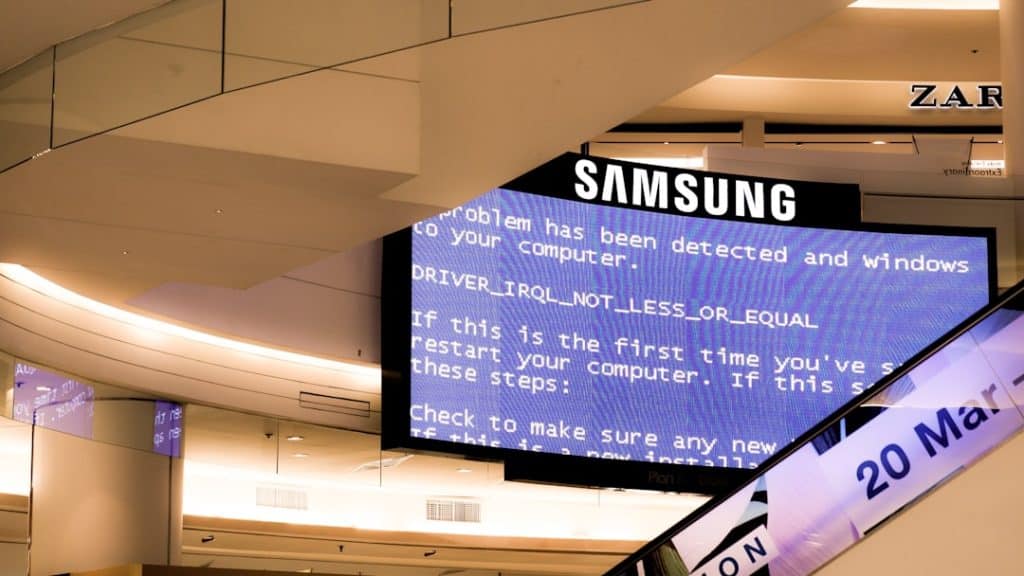
Gaming has grown into a global phenomenon, and with advancements in graphics and mechanics, the demands on hardware and software have increased significantly. Unfortunately, alongside these improvements, gamers frequently encounter technical issues that can disrupt the experience. One of the more elusive and frustrating errors PC gamers face is the low level fatal error, often disrupting gameplay or preventing games from launching entirely. This article delves into the causes of this error and outlines effective solutions to get you back into the game swiftly.
What Is a Low Level Fatal Error?
The low level fatal error typically appears in games developed with Unreal Engine. The error message may pop up as a dialog window, reading something like: “LowLevelFatalError: [File:Unknown] [Line: 198] Unreal Engine exiting due to D3D device being lost.” This error indicates that the game engine has encountered a problem accessing the system’s graphic resources, which results in the game crashing.

Let's break down how players can pinpoint the causes and implement the right fixes.
Common Causes of Low Level Fatal Errors
There is no one-size-fits-all answer when it comes to low level fatal errors, but some of the most common triggers include:
- GPU driver conflicts or outdated graphics drivers
- Overclocking of CPU or GPU beyond stable limits
- Corrupted game files
- DirectX or Visual C++ Redistributables not functioning correctly
- System incompatibility, usually involving older hardware
- Unstable third-party background applications affecting GPU or CPU memory
How to Fix Low Level Fatal Error
There are several methods one can try to fix this error. Depending on your error message, system configuration, and game, it may take a few tries to isolate the problem. Below are the most effective solutions.
1. Update Your Graphics Drivers
The first and easiest step is updating your graphics card drivers. Manufacturers like NVIDIA and AMD release updates frequently to improve performance and compatibility with new games.
- Visit the official site for NVIDIA or AMD.
- Download the latest drivers compatible with your GPU model.
- Install using a clean installation option to replace outdated files.
Tip: You can also use GPU management software like GeForce Experience or AMD Adrenalin Software for easier updates.
2. Verify Game Files
Corrupted or missing game files is a common source of Unreal Engine-related errors. Here's how to verify and repair them:
- For Steam: Right-click the game in your library → Properties → Installed Files → Verify Integrity of Game Files.
- For Epic Games: Navigate to the game in the launcher → Click the three dots next to the title → Manage → Verify.
This process can repair corrupted files and restore missing ones which could be triggering the error.
3. Disable Overclocking
If you're running your hardware overclocked, that may destabilize your system under the strain of gaming. Disable overclocking from BIOS or any third-party software like MSI Afterburner. This will help to maintain stability, especially during graphics-intensive gameplay.
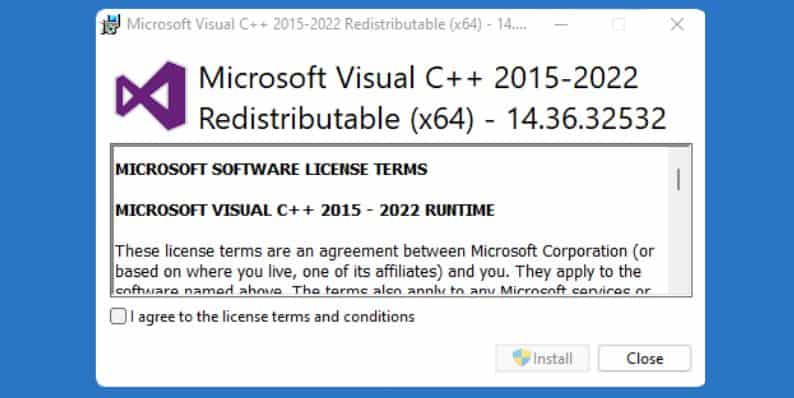
4. Reinstall or Update DirectX and Visual C++
Some games require precise versions of DirectX or Visual C++ redistributables to function properly. If they are outdated or not properly installed, you might face fatal errors.
- Download DirectX End-User Runtime.
- Install or repair all versions of the Visual C++ Redistributables.

5. Set the Game to Run with Admin Rights
Running the game with administrator privileges can help bypass security restrictions that prevent proper access to system files or GPU resources.
- Right-click the game’s shortcut or .exe file.
- Select “Properties” → Compatibility tab → Check “Run this program as an administrator.”
6. Disable Background Applications
Some software running in the background may hog memory or conflict with the game. Disable non-essential services before launching the game:
- Use Task Manager to check and close unnecessary tasks.
- Press Win + R, type msconfig, and perform a clean boot.
- Temporarily disable overlays like Discord, NVIDIA ShadowPlay, or AMD ReLive.
7. Change In-Game Graphics Settings
High graphic settings can overwhelm your system if it's not powerful enough. Lowering the following settings may help:
- Textures
- Anti-aliasing
- Shadows
- VSync
Try launching the game in Windowed Mode or Safe Mode to see if the issue persists. If so, the problem could be tied to advanced rendering options.
8. Reinstall the Game
If all else fails, a full reinstall may be required. Ensure you back up saved game data (if not stored on the cloud), uninstall the game, then reinstall it and re-verify game files for added assurance.
9. Hardware Compatibility and Monitoring
Sometimes, outdated or aging hardware can cause these errors. Monitor system temperatures and memory usage using tools like HWMonitor or MSI Afterburner. If temperatures are dangerously high, you might need to clean fans, replace thermal paste, or adjust airflow in your PC case.
Games relying heavily on Unreal Engine may become unstable if the power supply unit can't maintain consistent power, or if RAM is faulty. Always make sure your PC meets or exceeds minimum system requirements for the game you're playing.
Final Thoughts
While the low level fatal error is known for being disruptive and sometimes difficult to troubleshoot, it is usually caused by either software conflicts or hardware limitations. The methods listed above will help most gamers resolve the issue, enabling them to enjoy smooth and uninterrupted gameplay.
If none of the fixes resolve the issue, consider reaching out to the game's support forum or contacting the game developer with your DXDiag and crash logs for more personalized help.
Frequently Asked Questions (FAQ)
-
Q: Can low level fatal errors damage my PC?
A: No, these errors typically terminate a game session but do not affect your hardware. However, they may signal existing instability in your software or hardware setup. -
Q: Do only Unreal Engine games produce this error?
A: While most occurrences are seen in Unreal Engine-based games, similar errors might happen in other engines if there's a problem accessing GPU or system resources. -
Q: Should I reset Windows if all fixes fail?
A: Only consider resetting Windows as a last resort after backing up data, and especially if issues persist across multiple games and apps. -
Q: Could antivirus software be responsible for this error?
A: Yes, in rare cases, overzealous antivirus programs may block components during gameplay. Temporarily disabling it may help identify the cause. -
Q: Are console versions of games affected by this error?
A: No, low level fatal errors are primarily a PC issue related to Windows software, drivers, and custom hardware configurations.
By understanding the nature of low level fatal errors and applying strategic fixes, gamers can avoid unnecessary frustration and maintain an optimal gaming environment. Troubleshooting might take time, but in most cases, it's completely manageable with the right approach.