
In the world of digital videography, particularly when working with footage from GoPro cameras and similar devices, you may come across a file extension you’re unfamiliar with—.LRV. An LRV file, short for Low Resolution Video, is not a full-quality version of your recorded video but instead a low-resolution proxy used for quick previews and efficient editing. Understanding how to handle and edit LRV files can streamline media workflows and enhance your post-production efficiency.
This article offers a clear, professional guide to editing LRV files: what they are, why they're used, and how to work with them correctly.
What is an LRV File?
LRV files are automatically created by GoPro cameras alongside the high-definition video files (typically .MP4 or .MOV). These lower-resolution alternatives are primarily intended for:
- Rapid preview and playback on mobile devices or slow computers
- Use in editing software as proxy files to enable smooth editing
- Thumbnail generation and quick video scrubbing within GoPro apps
Due to their lower bitrate and resolution, LRV files are easier to process and provide fluid editing experiences. However, remember that these files are not meant for final renders.

Can LRV Files Be Edited?
Yes, LRV files can be edited, but with some caveats. Since they are low-resolution versions primarily used for previewing, their quality is significantly inferior to the original video. Therefore, any editing done on these should be considered temporary or experimental.
Professionals usually use LRV files when they want to:
- Edit rough cuts quickly without taxing system resources
- Work on long projects with limited hardware capabilities
- Test sequences or apply base effects before working with the full-resolution footage
After rough editing is complete, the software typically replaces the LRV footage with the full-quality version during the final render or export.
How to Edit an LRV File
To edit an LRV file, follow these steps:
- Locate the LRV Files: These are usually stored in the same directories as the main footage on your GoPro or SD card. They have names like GH012345.LRV corresponding to the main video file GH012345.MP4.
- Change the File Extension (if necessary): Some software doesn't recognize LRV files. You can simply rename the file extension from .LRV to .MP4. Since LRV files are encoded in H.264 format, they are compatible with most video editors after renaming.
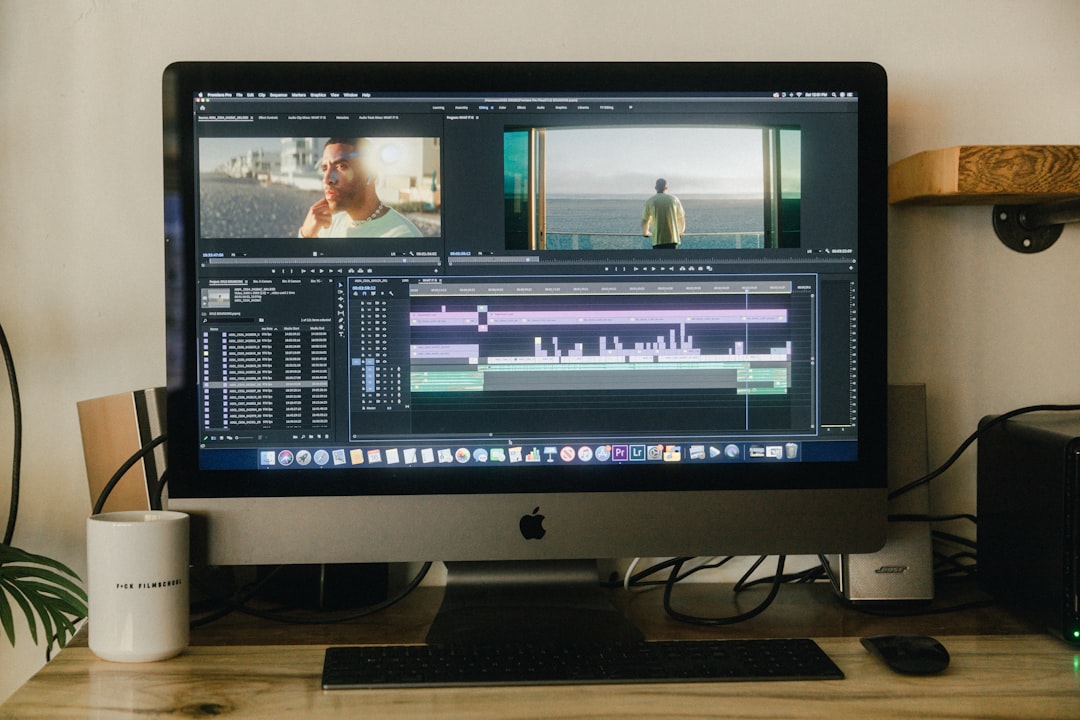
- Import into Editing Software: Use any capable video editing program such as Adobe Premiere Pro, DaVinci Resolve, or even free editors like Shotcut or Lightworks.
- Edit as You Normally Would: Apply basic cuts, transitions, and placeholders for more advanced effects. Keep in mind the low resolution when applying color grading or sharpness related edits.
- Replace with Full-Resolution Footage: Before exporting, relink the clips to the original high-resolution files to maintain final video quality.


Recommended Editing Software for LRV Files
Not all video editing software handles proxy files seamlessly. Here’s a short list of reliable programs for editing LRV files efficiently:
- Adobe Premiere Pro – Use the built-in Proxy Workflow for editing with LRV files.
- DaVinci Resolve – Supports proxy editing using LRV or other low bitrate formats.
- Final Cut Pro – Mac users can use LRV files as proxy media by converting them to ProRes Proxy format.
- Shotcut – A free and open-source editor that supports MP4 and renamed LRV files.
Important Considerations
While editing LRV files can save time, be cautious of the following limitations:
- Image Quality: These files are not suitable for color correction or fine detail work.
- Limited Audio Channels: LRV files might not carry all audio data, complicating sound sync.
- Final Export Must Use Full-Res Files: Never use LRV files for your final output or delivery.
Conclusion
Editing LRV files is a strategic way to increase efficiency, particularly when dealing with large content libraries or editing on underpowered hardware. However, always use LRV files as a tool within your workflow—not as a substitute for high-quality footage.

By understanding the role and limitations of LRV files and applying careful editing practices, you can significantly improve your video editing speed while preserving the final product’s quality.