
When the Nighthawk A9000 stops working, it usually hits at the worst time. Your internet drops, pages stop loading, and everything that needs Wi-Fi just freezes. That’s frustrating, especially when the adapter worked fine before. This guide exists to help you understand what’s going on, why it happens, and how to fix it step by step without panic or guesswork.
By the end, you’ll know what the problem means, which fixes matter most, and how to avoid the same issue later.
What Is “Nighthawk A9000 Not Working”?
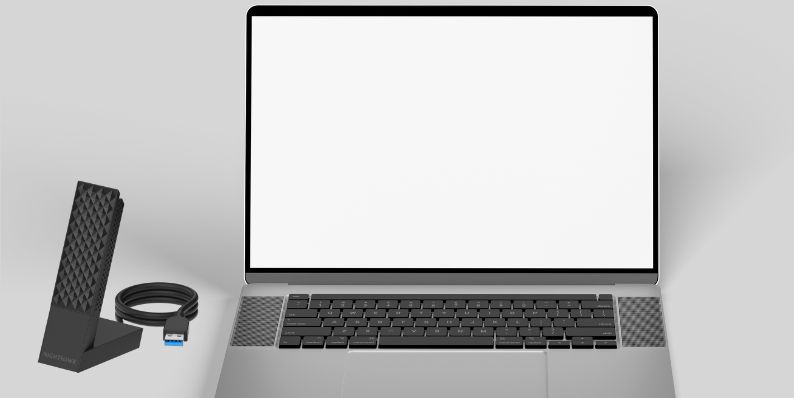
You usually notice this problem inside Windows settings or Device Manager. Sometimes the adapter does not appear under network adapters. Other times, Wi-Fi connects but shows no internet, or the 6 GHz network never appears in the Wi-Fi list.
Common Causes of Nighthawk A9000 Not Working
This issue can happen for several reasons, and most of them come from software or configuration problems rather than hardware damage.
- Outdated or incompatible NETGEAR A9000 drivers
- Windows Update replacing the correct driver
- USB power saving disabling the adapter
- Wi-Fi 6E or 6 GHz not supported by the system
- Conflict with built-in Wi-Fi adapters
- Router security mode mismatch
- Unstable or underpowered USB port
How to Fix Nighthawk A9000 Not Working?
In most cases, the fix depends on whether Windows can detect the adapter and talk to it correctly. Some fixes target drivers, others target power or network settings. Work through them in order. Skipping steps can hide the real issue.
Fix #1: Check If Windows Detects the Adapter
If Windows does not detect the adapter, no network setting will fix it. Detection is the first thing to confirm because it tells you whether the problem is software or hardware related.
Here are the following steps which help you check detection:
- Open Windows Device Manager
- Expand Network adapters
- Look for Nighthawk A9000 or an unknown USB device
- Check for warning icons
- Click Action and refresh hardware list
- Replug the adapter directly into the PC
- Restart the system
Once Windows detects the adapter correctly, most connection problems disappear.
Fix #2: Reinstall the Official NETGEAR Driver
Windows sometimes installs a generic network driver that limits features or breaks compatibility. This often happens after a system update and can stop Wi-Fi 6E from working.
Follow the steps below to easily reinstall the correct driver:
- Uninstall the adapter from Device Manager
- Restart the computer
- Download the official driver from NETGEAR
- Run the installer as administrator
- Plug in the adapter only when asked
- Restart again
After this, Windows should load the proper driver and restore stable connectivity.
Fix #3: Disable USB Power Saving
USB power saving can silently shut down the adapter while the system is running. When that happens, the Wi-Fi connection drops without warning and may not reconnect.
You can perform the following steps to disable power saving:
- Open Device Manager
- Expand Universal Serial Bus controllers
- Open USB Root Hub properties
- Go to Power Management
- Uncheck the power-off option
- Save changes
- Restart Windows
This keeps the adapter powered and reduces random disconnects.
Fix #4: Make Sure Wi-Fi 6E and 6 GHz Are Supported
Wi-Fi 6E depends on system support, router support, and regional rules. If any part does not support 6 GHz, the network will not appear, even if the adapter works.
Check these points carefully:
- Windows version supports Wi-Fi 6E
- Router firmware supports 6 GHz
- Router uses WPA3 or mixed security
- Region allows 6 GHz operation
If one requirement fails, the adapter may still work on 5 GHz.
Fix #5: Disable Conflicting Network Adapters
Built-in Wi-Fi cards can compete with USB adapters. Windows may switch between them, causing unstable or failed connections.
Try these simple steps to quickly remove conflicts:
- Open Network Connections
- Right-click the built-in Wi-Fi adapter
- Select Disable
- Keep only the A9000 active
- Reconnect to Wi-Fi
This forces Windows to use the USB adapter only.
Fix #6: Reset Network Settings in Windows
Corrupted DNS, IP, or network profiles can block internet access even when Wi-Fi connects. This happens after VPN use or failed updates.
The following steps will show you how to reset settings properly:
- Open Windows Settings
- Go to Network and Internet
- Select Advanced network settings
- Choose Network reset
- Confirm reset
- Restart the system
This clears broken configurations and refreshes the network stack.
Fix #7: Update Router Firmware and Security Mode
Older router firmware may not work well with newer adapters. Security mismatches also stop the connection from completing.
Check your router and confirm:
- Firmware is updated
- WPA3 or mixed WPA2/WPA3 is enabled
- Wi-Fi 6 or 6E mode is active
After updating, reconnect the adapter and test again.
Fix #8: Test for Hardware Failure
If none of the fixes work, the adapter itself may be faulty. This is uncommon, but it does happen.
Use these checks:
- Test the adapter on another PC
- Try a different USB port
- Avoid USB hubs
- Watch for overheating
If it fails on multiple systems, contacting NETGEAR support is the next step.
Prevention Tips to Avoid Nighthawk A9000 Issues in the Future
Small habits help prevent repeat problems and save time later.
- Keep Windows and drivers updated
- Use official NETGEAR drivers only
- Restart your router weekly
- Avoid cheap USB extensions
- Disable aggressive power saving
- Update router firmware
- Replace aging hardware early
Conclusion
Overall, when the Nighthawk A9000 stops working, the cause usually comes down to drivers, power settings, system support, or router configuration. These problems can appear suddenly and feel confusing, but they are often fixable with calm troubleshooting.
Try each fix carefully and don’t rush. Most users solve the issue before reaching the last steps. If the problem continues, official NETGEAR support or a technician can help further. If this guide helped you, share it with others and leave a comment about which fix worked for you.