

Seeing Hulu error code P-DEV313 can stop a show right in the middle and kill the mood fast. You press play, the screen loads, then the error pops up. This usually means Hulu can’t stream the video right now. The good news is that most cases are easy to fix. This guide explains what the error means, why it happens, how to fix it step by step, and how to keep it from coming back.
What Is Hulu Error Code P-DEV313?
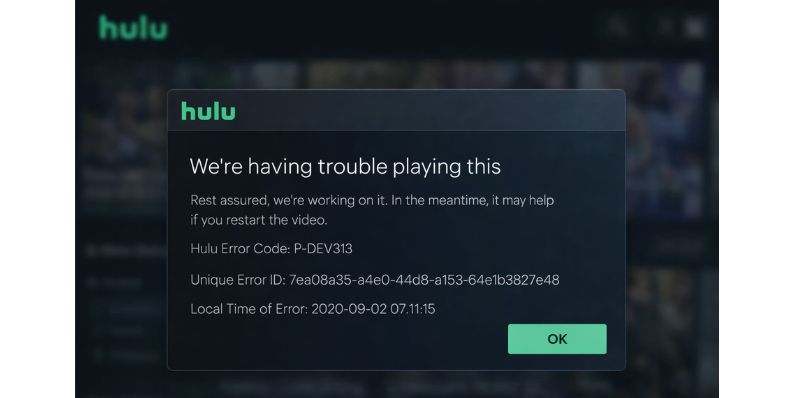
You may see this error on a Smart TV, Roku, Fire TV, Apple TV, phone, tablet, or web browser. It can appear when starting a new episode or resuming a paused one. Sometimes it affects only one device while Hulu works fine on another.
Common Causes of Hulu Error Code P-DEV313
This error usually happens because of app, device, or network problems.
- Temporary Hulu server issues
- Weak or unstable internet connection
- Outdated Hulu app version
- Corrupted app cache or stored data
- Device software bugs
- Browser issues for web users
- Account session problems
How to Fix Hulu Error Code P-DEV313
In most cases, this error can be fixed by refreshing the app, device, or internet connection. Try the fixes below one by one.
Fix #1: Restart the Hulu App
Temporary glitches inside the app can stop playback.
Close the Hulu app fully. Wait a few seconds. Open the app again and try playing the video. This simple step fixes many playback errors.
Fix #2: Restart Your Device
Device processes can hang and affect streaming.
Turn off your TV, streaming device, phone, or computer. Unplug it if possible. Wait about 30 seconds. Turn it back on and open Hulu again.
Fix #3: Check Your Internet Connection
Hulu needs a stable connection to stream video.
Here are the steps to check your connection:
- Open another app or website
- Test if videos load smoothly
- Restart your router if streaming is slow
- Switch to a wired connection if available
- Avoid heavy downloads while watching Hulu
A steady connection helps prevent playback errors.
Fix #4: Update the Hulu App
An outdated app can cause playback problems. Here’s how you can update Hulu:
- Open your device’s app store
- Search for Hulu
- Check if an update is available
- Install the update
- Restart the Hulu app
Updates fix bugs and compatibility issues.
Fix #5: Clear Hulu App Cache and Data
Corrupted cache files are a common cause of error P-DEV313. Follow these steps based on your device:
On Android phones, tablets, or Android TV:
- Open Settings
- Go to Apps or Applications
- Select Hulu
- Tap Storage
- Choose Clear Cache
- If the issue continues, tap Clear Data
- Reopen Hulu and sign in again
On Fire TV:
- Go to Settings
- Select Applications
- Open Manage Installed Applications
- Choose Hulu
- Select Clear Cache
- Select Clear Data if needed
- Restart the device
On Roku and Smart TVs:
Roku does not offer a manual cache option. Restarting the device clears cached data.
Fix #6: Check Hulu Server Status
Sometimes the issue is not on your side. If Hulu servers are down or under maintenance, streaming may fail. Wait a short time and try again later if this is the case.
Fix #7: Try a Different Device or Browser
This helps confirm whether the problem is device-specific.
Try watching Hulu on another TV, phone, or browser. If it works there, the issue is likely with the original device or app.
Fix #8: Log Out and Log Back Into Hulu
Account sessions can sometimes break. Open Hulu settings. Log out of your account. Close the app. Reopen Hulu and sign back in. Then try streaming again.
Prevention Tips to Avoid Hulu Error Code P-DEV313 in the Future
Prevention helps keep your streaming smooth.
- Keep the Hulu app updated
- Use a stable internet connection
- Restart streaming devices regularly
- Avoid running many apps at once
- Keep device software updated
- Log out properly when switching devices
- Check Hulu service status during outages
Conclusion
In short, Hulu error code P-DEV313 means the app cannot play a video due to playback, device, or network issues. Most of the time, restarting the app, updating it, or fixing the internet connection solves the problem.
Try the fixes above and follow the prevention tips. If the error keeps coming back, contact Hulu support for help. If this guide helped you, share it and leave a comment so others can get back to watching faster.