

If ChatGPT suddenly stops replying or shows “Something went wrong,” it can disrupt your work or study. Many users experience this issue while chatting, coding, or researching. The good news is that most of the time, the problem isn’t serious and can be fixed in minutes.
This guide explains why ChatGPT stops working, what causes the issue, how to fix it step by step, and how to keep it from happening again. Everything here is simple enough for anyone to follow and based on how ChatGPT actually functions on OpenAI’s servers.
What is ChatGPT Not Working?
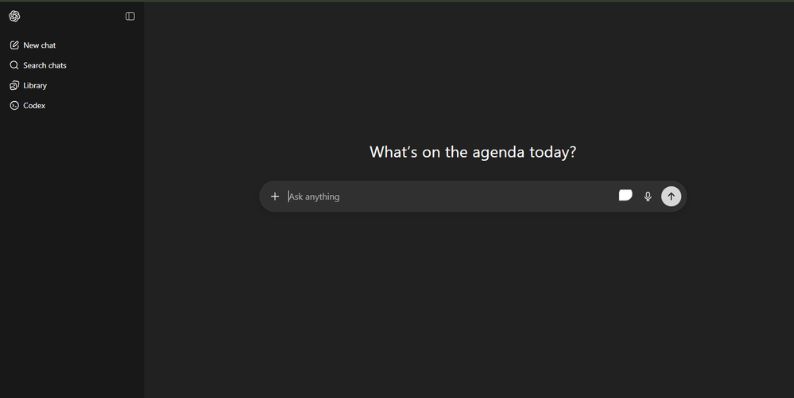
ChatGPT runs through OpenAI’s cloud platform, which uses Natural Language Processing (NLP) to understand and respond to your text. Every message you send is broken into tokens, processed through a transformer model like GPT-5 or GPT-4, and then sent back to you as a response. If any part of that process fails from your browser to your internet connection to OpenAI’s system —the chat will stop working.
Common Causes of ChatGPT Not Working
The issue can come from your browser, your internet connection, or OpenAI’s servers. Here are the main causes:
- Server Overload or Downtime – OpenAI servers may be under maintenance or heavy load, causing slow or failed connections.
- Browser Cache or Cookies – Old or corrupted data stored in your browser can block ChatGPT scripts from running properly.
- Weak Network or Wi-Fi Drop – Unstable internet or router lag can cut off communication with OpenAI’s system.
- Expired Login Session – Authentication tokens expire after a while, stopping ChatGPT from loading.
- Rate Limits on API – Developers who use the API may exceed their request limits, which pauses access temporarily.
- Overloaded Context Window – Very long conversations or prompts can fill up the model’s token limit and freeze responses.
- VPN or Firewall Interference – Restricted or filtered networks can block access to OpenAI servers.
- Browser Extensions – Ad blockers, privacy extensions, or antivirus browser add-ons can prevent essential scripts from running.
- Low Device Memory – If your system is overloaded with open tabs or background programs, ChatGPT may freeze or fail to load.
How to Fix ChatGPT When It’s Not Working
Here’s how to get ChatGPT working again. Follow these steps carefully and test after each one.
1. Check OpenAI’s System Status
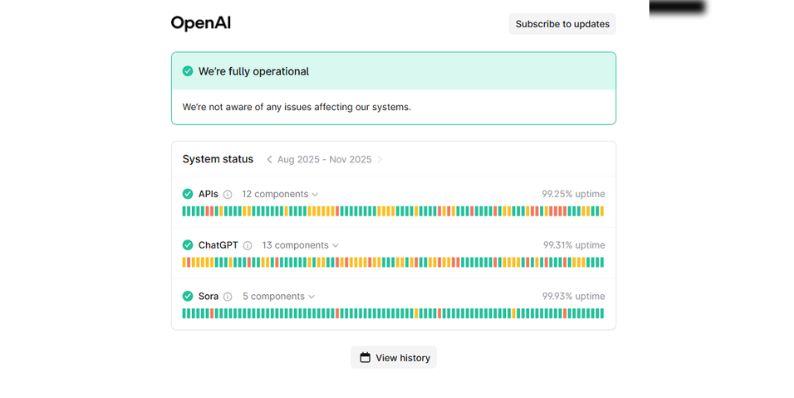
If you see messages like “Partial outage,” “High latency,” or “Service disruption,” then the issue is on OpenAI’s side. There’s nothing wrong with your browser or device. Wait until the service status changes to “Operational” before trying again. You can refresh the page every few minutes for updates.
When traffic is high, ChatGPT may still work but respond slowly or return blank screens. Waiting and retrying later often solves it.
2. Clear Browser Cache and Cookies
If the servers are fine, your browser might be the cause. Caches and cookies store small bits of website data to help pages load faster. But over time, this stored data can conflict with new updates, causing ChatGPT to freeze or fail to load.
To fix it:
- Open your browser settings.
- Go to Privacy and Security → Clear Browsing Data.
- Select “Cookies” and “Cached Images and Files.”
- Click “Clear Data,” then close and reopen the browser.
- Go back to chat.openai.com and sign in again.
If you still face issues, try disabling “preload pages” or “hardware acceleration” in the advanced browser settings. These sometimes interfere with heavy sites like ChatGPT.
3. Try a Different Browser or Device
Some browsers handle complex scripts differently. If ChatGPT keeps freezing or not loading, try using another browser. For example, switch from Chrome to Edge, Firefox, Brave, or Safari.
You can also test ChatGPT on your phone or tablet using the same account. If it works there, the problem lies within your main browser or its settings.
Also, make sure your browser is updated. Outdated versions often fail to handle new scripts used by OpenAI.
4. Turn Off Browser Extensions or VPN
Extensions like ad blockers, privacy shields, or grammar tools sometimes block scripts that ChatGPT needs to work. Open a new incognito or private window and log in. If ChatGPT loads fine there, an extension is the cause.
Disable extensions one by one until you find the one causing the conflict. Leave it off when using ChatGPT.
If you use a VPN, it might also cause problems. Some VPNs or proxies block WebSocket connections used by ChatGPT. Turn off your VPN or try a different server location. If your company uses a firewall, you might need to contact your network admin to whitelist OpenAI’s URLs.
5. Check Network and DNS Settings
An unstable or slow network is one of the most common causes of ChatGPT connection issues. Restart your Wi-Fi router or modem to refresh the connection. If that doesn’t help, switch to a mobile hotspot or another network to test.
You can also improve stability by changing your DNS. Use Google DNS (8.8.8.8 and 8.8.4.4) or Cloudflare DNS (1.1.1.1). This change improves routing between your device and OpenAI’s servers.
Run a quick test at speedtest.net. If your connection speed or latency is poor, restart your router or contact your internet provider. Avoid using public or school Wi-Fi networks that block certain web services.
6. Log Out and Log In Again
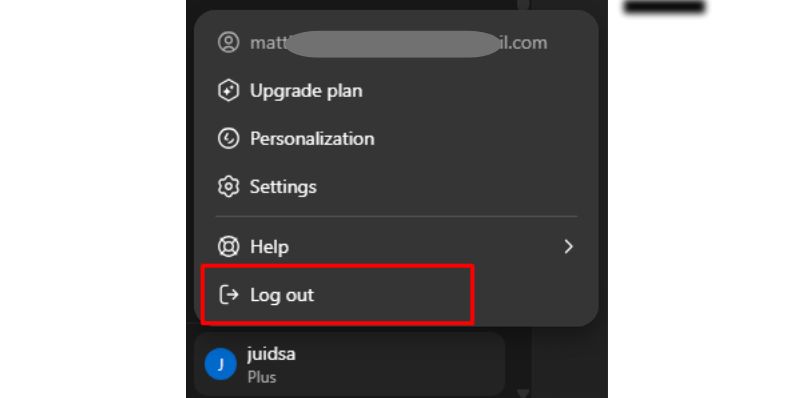
Click your profile picture in the top right, select “Log Out,” and then sign in again using your OpenAI or Google account. This simple step often solves silent login errors that accumulate over time.
7. Shorten or Restart Long Chats
When a chat gets too long, it can hit ChatGPT’s token limit and cause the model to stall. This is especially common when pasting long text or running multi-step commands.
Start a new chat if your conversation has been running for a while. You can also copy important text before clearing it to avoid losing work. Sending shorter and focused prompts helps ChatGPT process faster and more accurately.
8. Check API Settings (For Developers)
If you’re using ChatGPT through the OpenAI API, check your API dashboard for error codes. The most common one is HTTP 429, which means you’ve hit the rate limit. Other errors like 401 mean your API key is invalid or expired.
Go to the OpenAI Dashboard and verify that your API key is active. If needed, generate a new one. Also, make sure your usage settings and model limits match your plan. Sending smaller requests or spreading them out can prevent future interruptions.
9. Restart Your Device and Close Background Apps
Restarting your computer or phone may sound simple, but it clears memory leaks and resets blocked processes. Background apps, browser tabs, or system tools can slow ChatGPT’s scripts. Restarting frees up memory and helps your browser run faster.
Close unused programs before you reopen ChatGPT. Keeping your system lightweight ensures better browser performance overall.
10. Contact OpenAI Support
If you’ve tried everything and ChatGPT still doesn’t work, visit the OpenAI Help Center. There, you can find guides for account issues, billing, and regional errors.
When contacting support, include details such as your browser type and device, any visible error message, and what you’ve already tried. This helps their team respond faster and provide accurate help.
Prevention Tips to Avoid ChatGPT Not Working Problems in the Future
Here are some simple ways to keep ChatGPT running smoothly over time.
- Keep your browser updated to the latest version.
- Clear cache and cookies once a week to remove expired data.
- Avoid sending extremely long prompts in one chat.
- Don’t use multiple VPN layers or unstable IP addresses.
- Bookmark status.openai.com to check outages fast.
- Close extra browser tabs to free up system memory.
- Restart your Wi-Fi router every few days for a clean connection.
- Developers: monitor API rate limits and manage keys properly.
- Stay signed out of ChatGPT for long periods.
These small habits help prevent the most common ChatGPT loading and error issues before they start.
Conclusion
Most times, ChatGPT stops working because of minor technical problems like cache errors, expired sessions, or temporary server load. Understanding how ChatGPT works and how your browser and network connect to it makes these problems easy to fix.
Follow the fixes one by one, starting from checking OpenAI’s status to resetting your browser or network. In most cases, ChatGPT will start working again within minutes. If not, OpenAI’s support team can help you directly.
If this article helped you fix ChatGPT, share it with others or leave a comment below. Your feedback can help more users solve the same problem quickly.